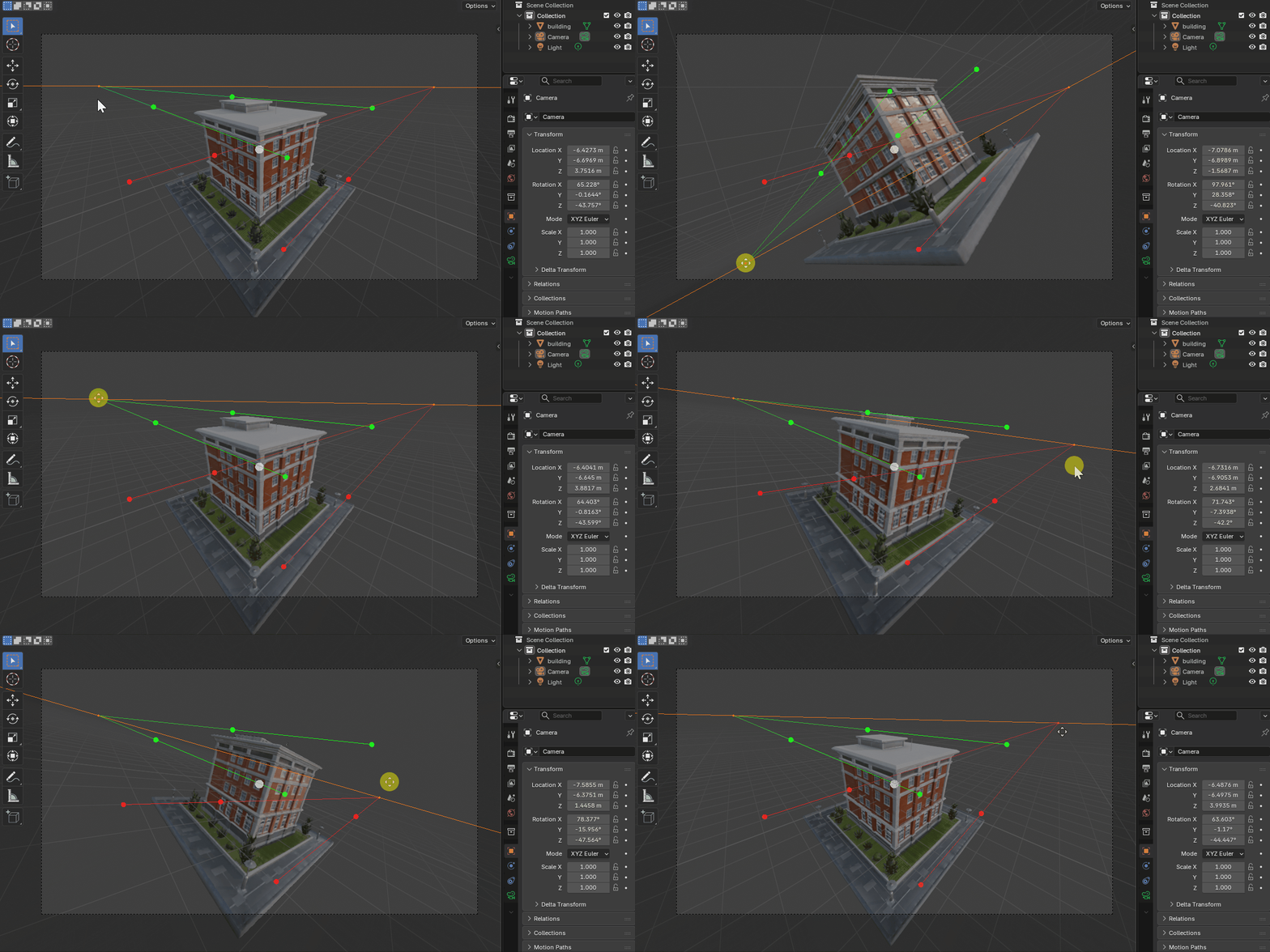
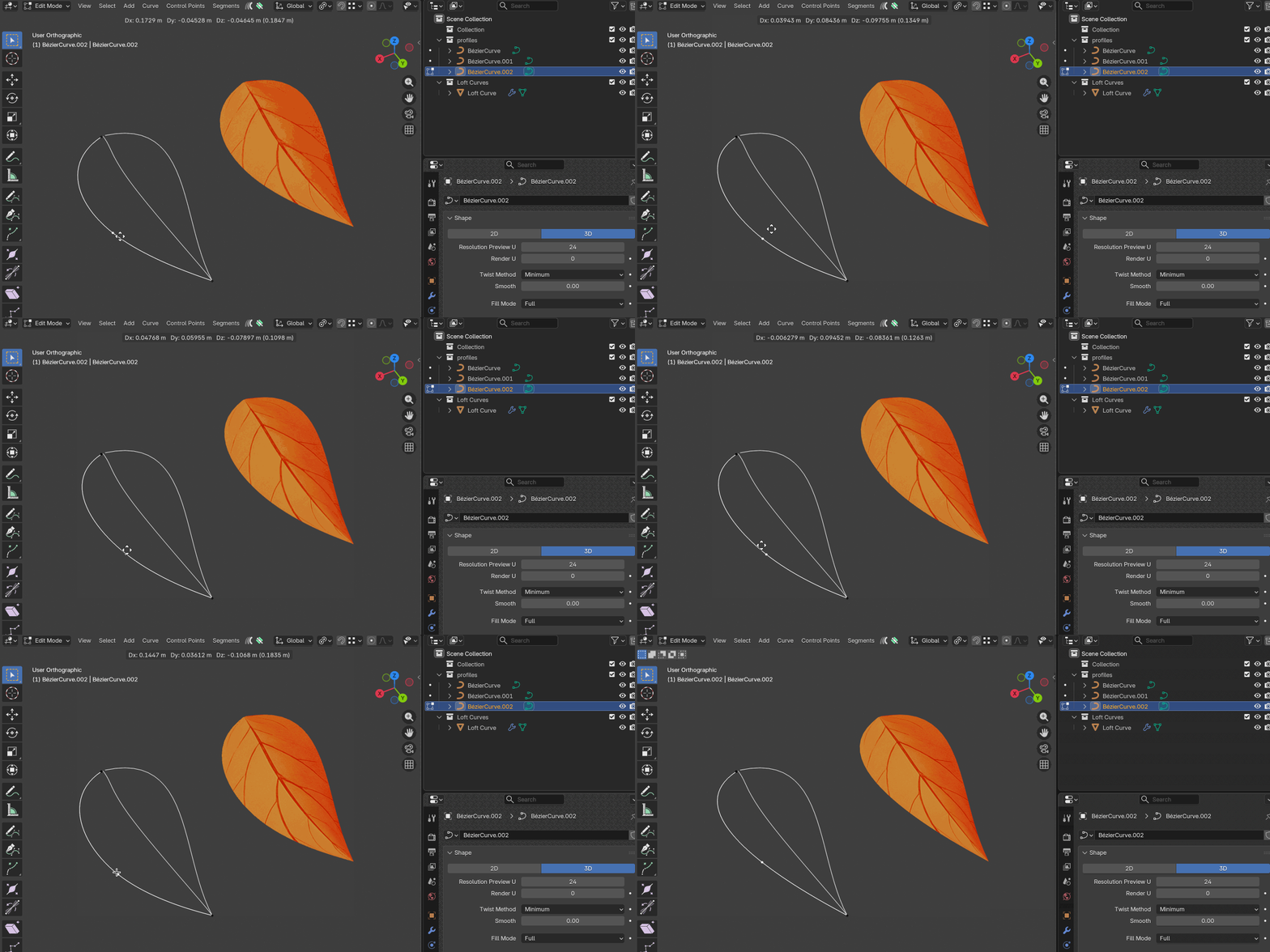
I’m happy to share a fresh new update to Perspective Plotter, bringing a small but very practical improvement to the workflow.
Move Vanishing Points More Directly
Until now, vanishing points in Perspective Plotter were adjusted primarily through the control points and guide handles, which works well, but can sometimes feel a little indirect when you’re fine-tuning a scene.
With this update, you can now move vanishing points directly in the viewport, making perspective setup faster, clearer, and more intuitive.
It’s a simple change, but one that gives you much more immediate control when matching cameras to:
concept art
photo backplates
architectural reference
hand-drawn sketches
or any perspective-based scene layout
Works with Existing Blender Versions
As always, the update is designed to be fully compatible with existing Blender installs, so you should be able to try it immediately in your current workflow without needing to change anything else.
Give It a Try!
If you already own Perspective Plotter, the update is available now, just download the latest version from your Superhive library and take it for a spin.
If you encounter any bugs, strange behaviour, or have ideas for further improvements, feel free to reach out. User feedback is invaluable and helps steer future development.
Thanks again to everyone using Perspective Plotter, I hope this update makes your perspective matching even smoother.
Over the past year I’ve been working on something that started as a simple upgrade to Curves to Mesh and ended up growing into its own tool entirely.
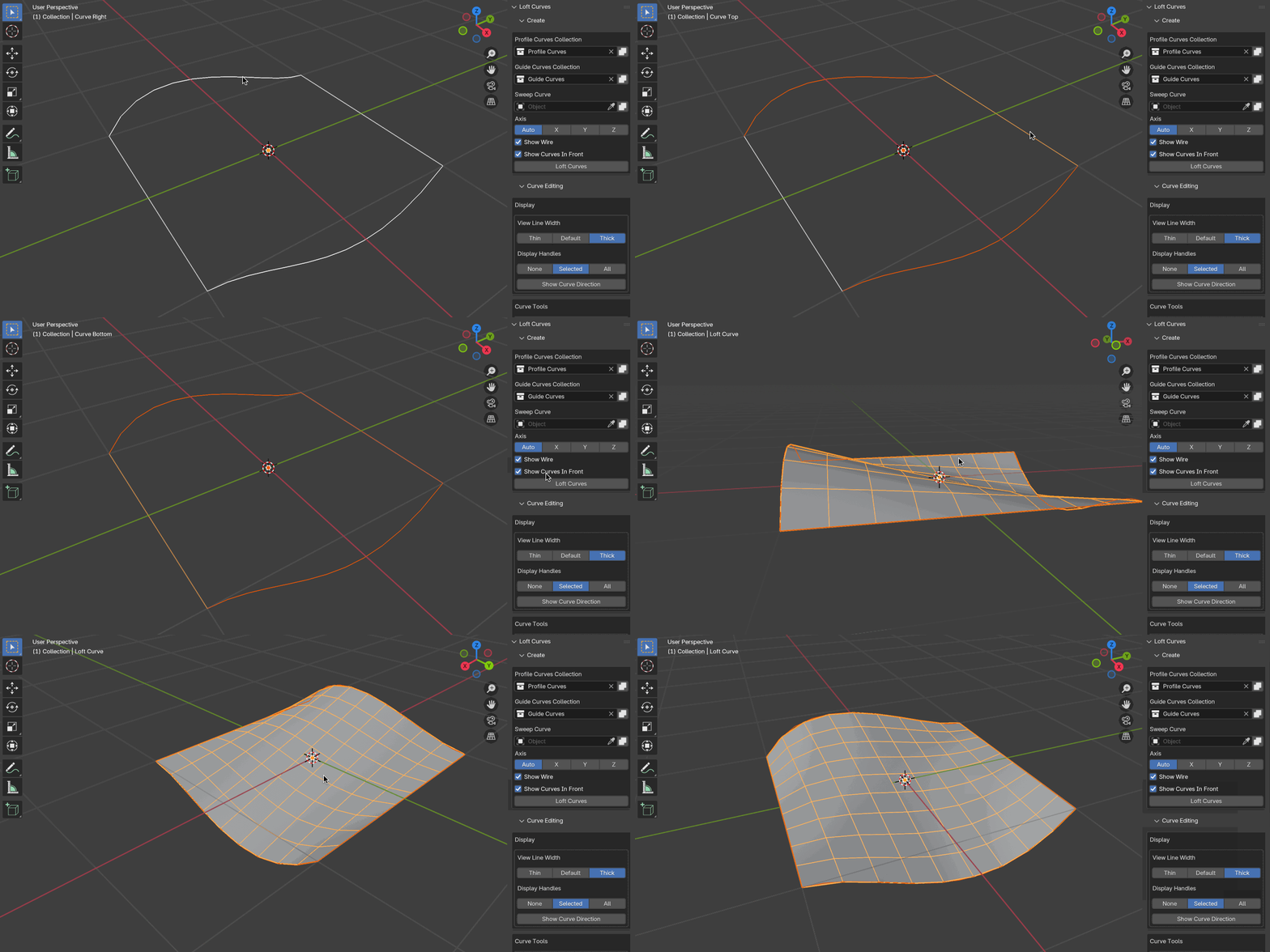
Today I’m pleased to share this new Blender add-on, Loft Curves.
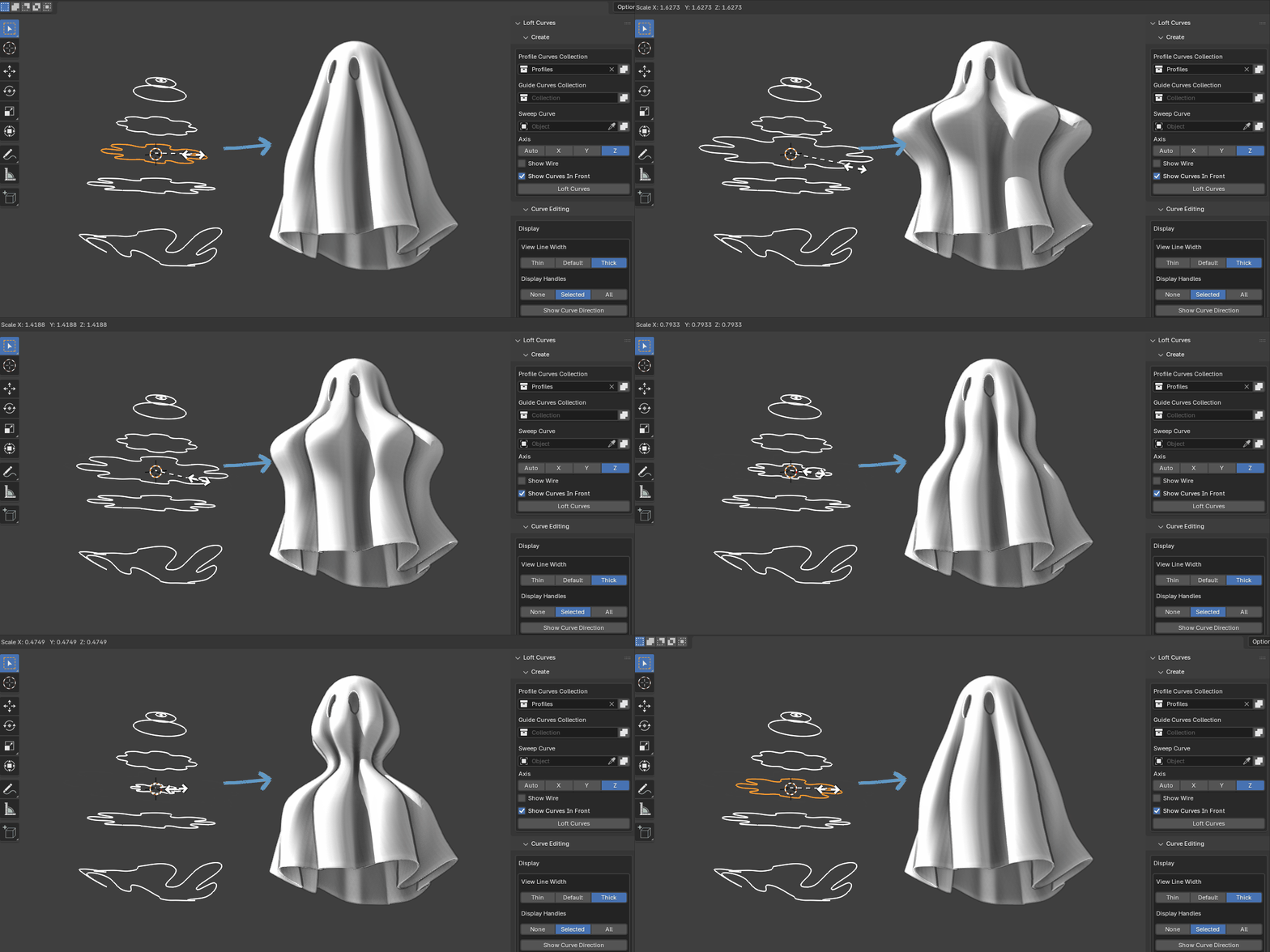
Loft Curves is built for artists who prefer shaping with curves and want a more flexible, modifier-based approach to creating clean surfaces inside Blender. It lets you loft between two or more curves, guide the flow of the surface using additional curves, and adjust everything in real time thanks to a Geometry Nodes-driven modifier.
Why Loft Curves?
One of the recurring requests I’ve seen over the years is for a straightforward way to loft between curves directly in Blender—without needing to jump into external software, and without the overhead of manually building node setups.
During early development, the goal was to extend Curves to Mesh. But as the workflow developed, testers pointed out that this felt like a different modelling approach altogether. Curves to Mesh specialises in patch-based surface generation using split curve grids. Loft Curves, by contrast, is built for freeform lofting driven by multiple profiles, guide rails, and sweep curves.
Rather than cram both approaches into a single add-on (and compromise each), Loft Curves has been released as a separate companion tool.
Curves to Mesh will continue to be fully supported and developed. It remains the best choice for structured patch modelling, while Loft Curves focuses on intuitive, modifier-driven lofting between two or more curves.
What Loft Curves Can Do
Here are some of the core features:
Modifier-Based Workflow
Loft Curves adds a custom Geometry Nodes modifier to your object. Adjust any curve and the surface updates instantly in the viewport.
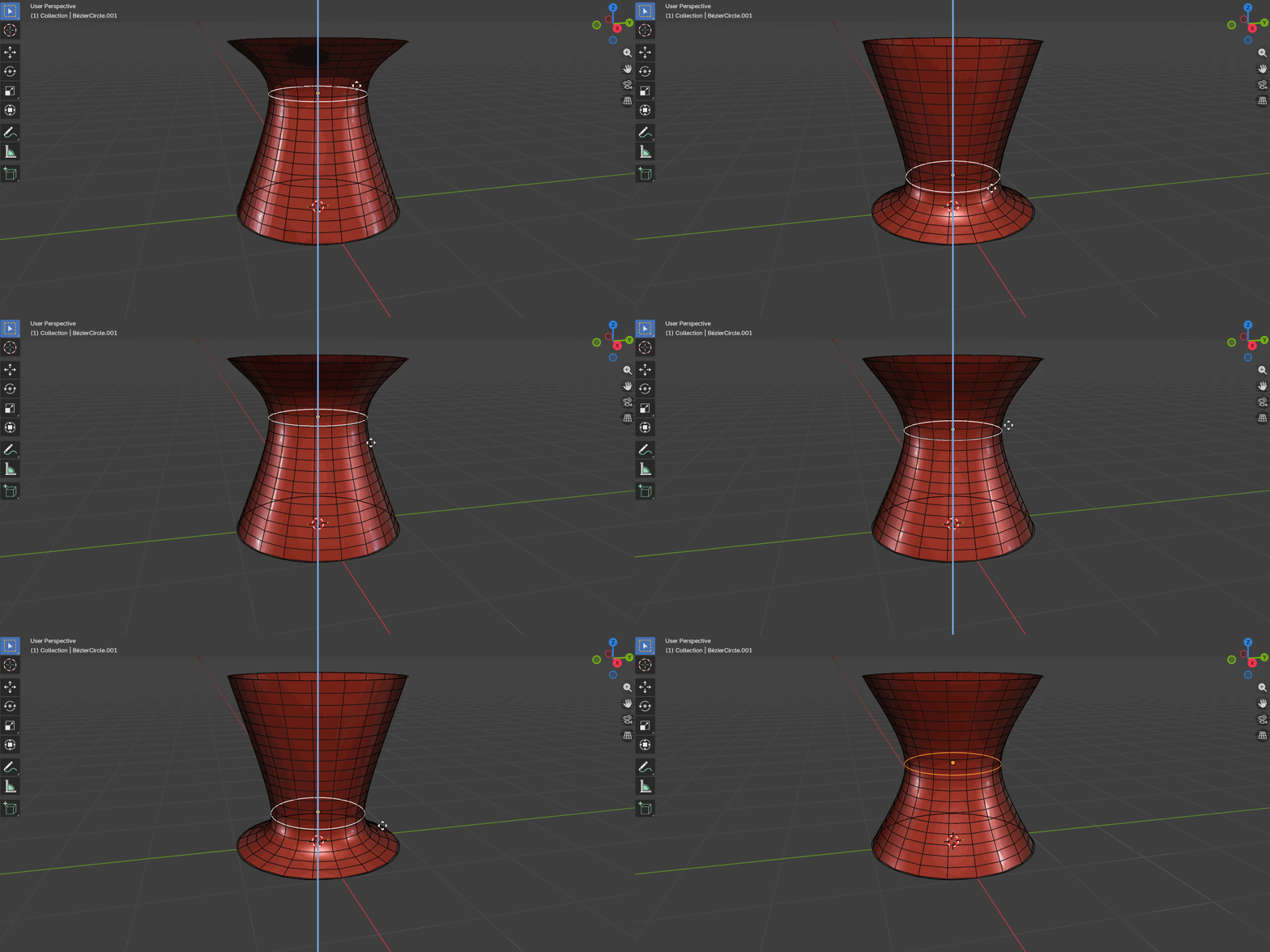
Loft Between Multiple Curves
Use two, three, or more profile curves to generate the surface. Perfect for blocking out concepts quickly.
Guide Curves for Control
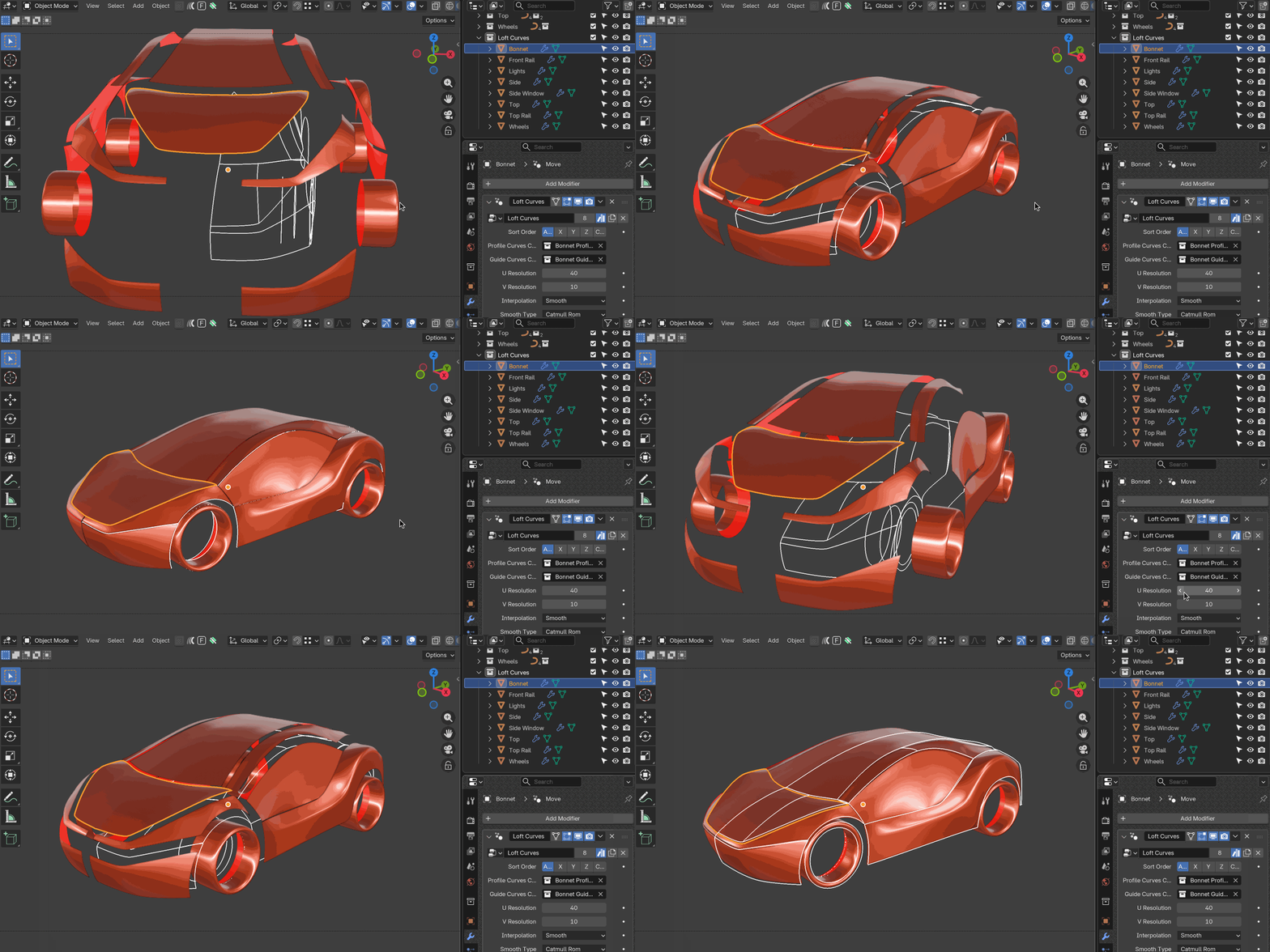
Add guide curves to refine how the loft transitions from one profile to another. Great for wings, hulls, footwear forms, and more complex shapes.
Profile + Sweep Tools
Choose or customise a sweep profile to control cross-sections along your shape.
UV Support
Loft Curves generates usable UVs to help with texturing and shading right away.
Flexible Applications
Product shells
Hard-surface concepts
Organic surfaces
Sci-fi paneling
Vehicle and aircraft components
Architectural forms
If you prefer to think in curves first and refine later, I hope you’ll find this workflow a good fit.
If you’re a Curves to Mesh user, you should already have received a dedicated discount code c2mloft as a thank you for your support over the years.
Final Thoughts
It’s been fascinating developing Loft Curves and seeing how artists approach curve-based workflows. The feedback from early testers helped shape this tool enormously, and I’m excited to see what the wider Blender community will create with it.
As always, thanks for your support and if you have questions, want to share your creations, or think of features you’d like to see next, feel free to get in touch.
When I first built the Bend Modifier, I almost didn’t release it.
On the surface, it looked too simple, just a way to bend geometry in Blender. Behind the scenes though, it involved quite a lot of maths: arcs, tangents, limits, and all the fiddly details to make sure it behaved cleanly with tails, pivots, and arbitrary axes. Not as straightforward as some might have you believe.
I worried it might not be enough of a tool to stand on its own.
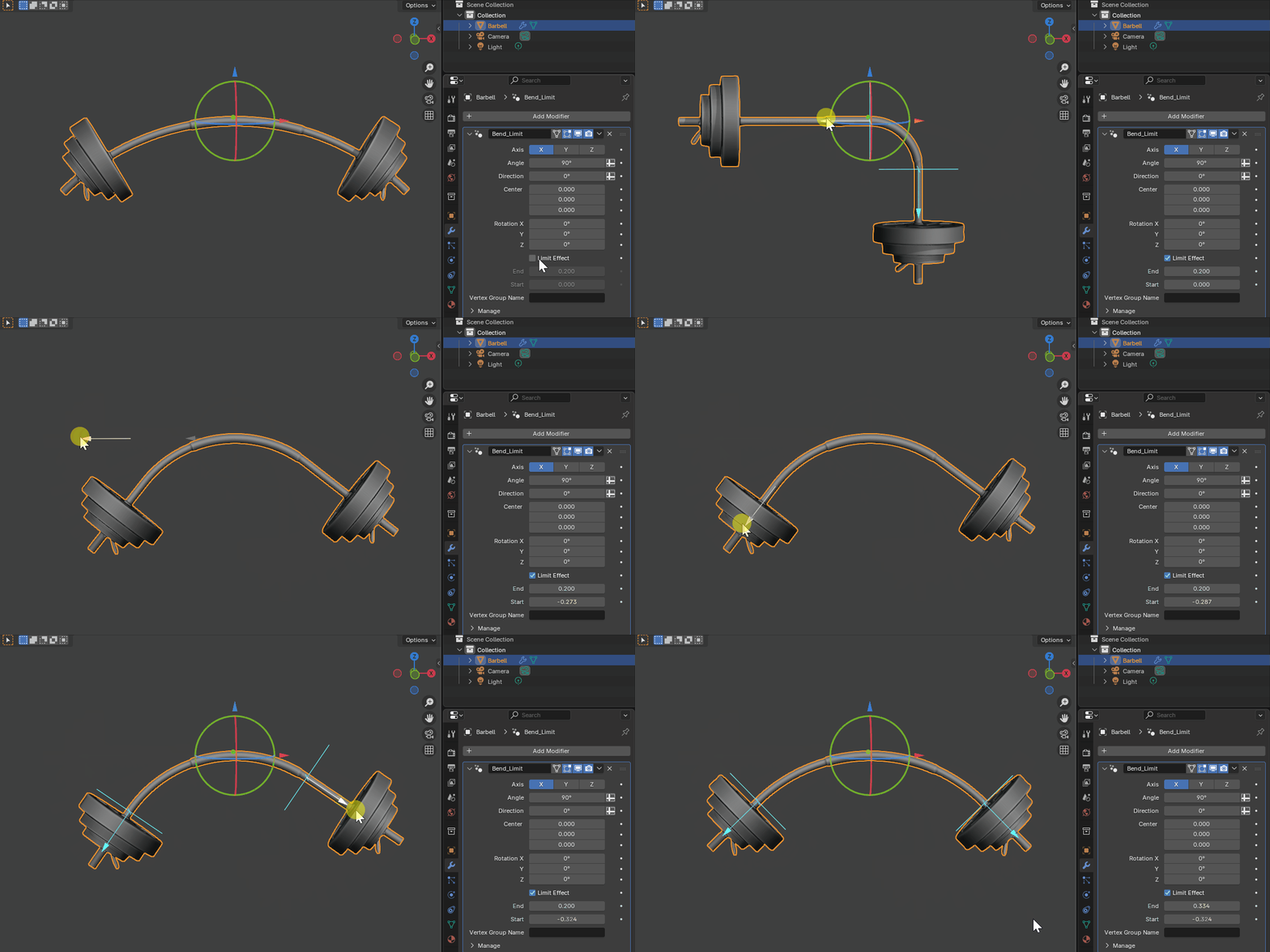
But since releasing it on Superhive(formerly Blender Market) just the other day, it’s taken off with over 200 downloads already. It turns out that sometimes the simple, focused tools are the ones people need most. Blender’s built-in Simple Deform has always been a bit awkward (one word: empties), so giving people a true modifier with a proper gizmo and real-world controls filled a gap I wasn’t sure existed until now.
The feedback has been great, from users coming over from 3ds Max who miss its bend modifier, to Blender modelers who just want a clean, UV-safe, stackable bend that doesn’t need extra objects cluttering the scene.
It’s been a reminder for me: even if a tool feels “too simple,” if it removes friction from everyday workflows, it can be valuable.
Here’s an introduction:
What’s next?
My next project is a major overhaul of Curves to Mesh. It’s just come out of testing and early feedback has been really positive. This one is a lot more complex under the hood, but I’ve learned not to underestimate the power of simple presentation paired with solid maths.
Thanks to everyone who’s tried the Bend Modifier so far, it’s been encouraging to see it bend its way into so many hearts so quickly.
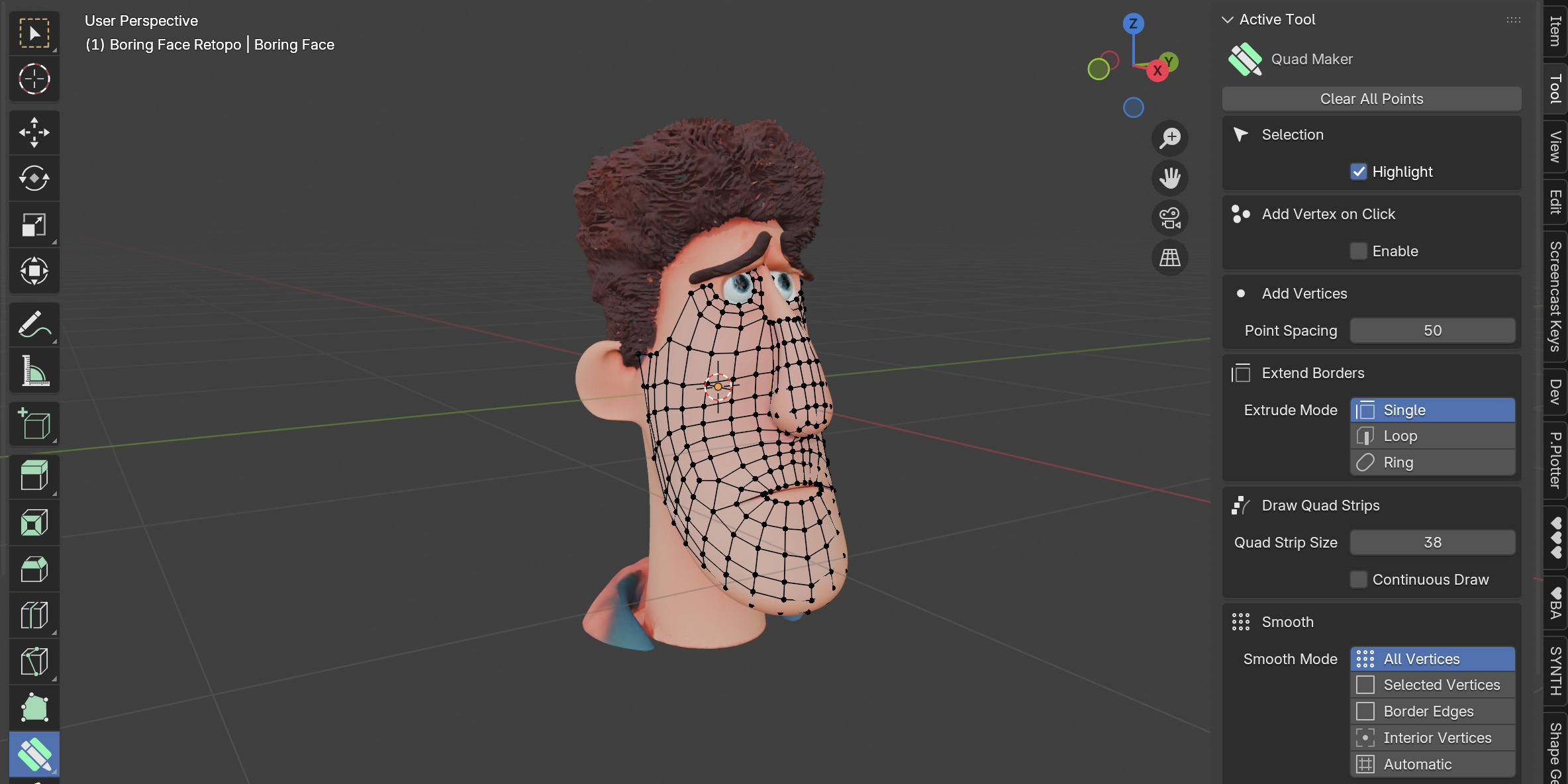
When I first built Quad Maker, I wanted it to be a straightforward tool—something inspired by Maya’s Quad Draw but designed to fit neatly into Blender. That philosophy hasn’t changed.
Keeping Quad Maker focused and “boring” has some real advantages:
It stays simple and easy to learn (see the documentation and video to get started).
It stays stable and reliable. Blender’s Python API already gets pushed hard by Quad Maker, so focusing on core features avoids adding unnecessary complexity.
It helps keep development costs under control. Since Quad Maker is a one-off purchase rather than a subscription, I want to make sure that updates add real value without inflating ongoing costs.
So while I am always open to feature requests, I’m careful to only add the ones that really matter. The result is that Quad Maker remains exactly what it was meant to be: a dependable, no-fuss retopology tool.
By supporting these add-ons you also support their continual improvement, so it is a mega help – you also help out the Blender Foundation too as a percentage of each of the add-ons go to them as well.
My current add-ons are:
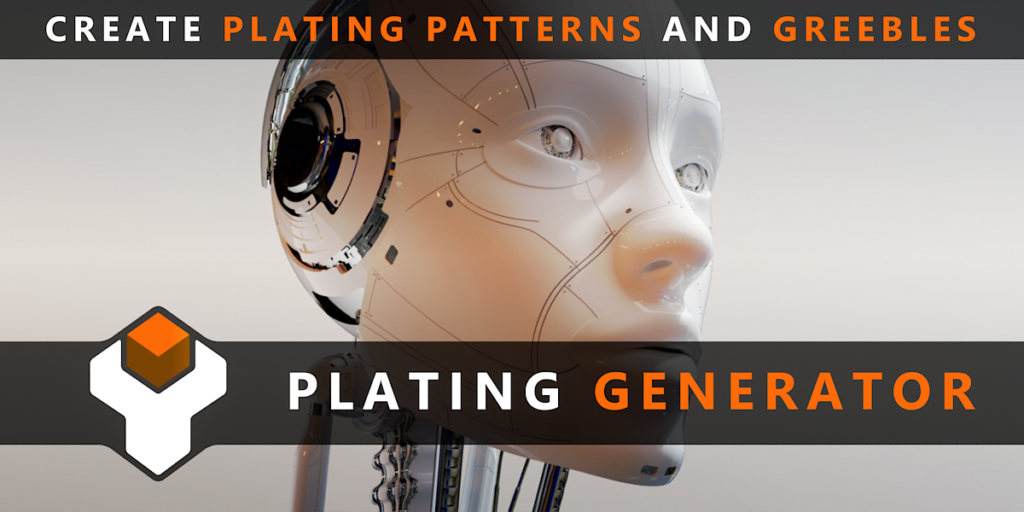
The Plating Generator – Quickly create a configurable mesh in the form of a fighter jet or starfighter.
Shape Generator – Quickly create and configure countless random shapes for a wide variety of purposes.
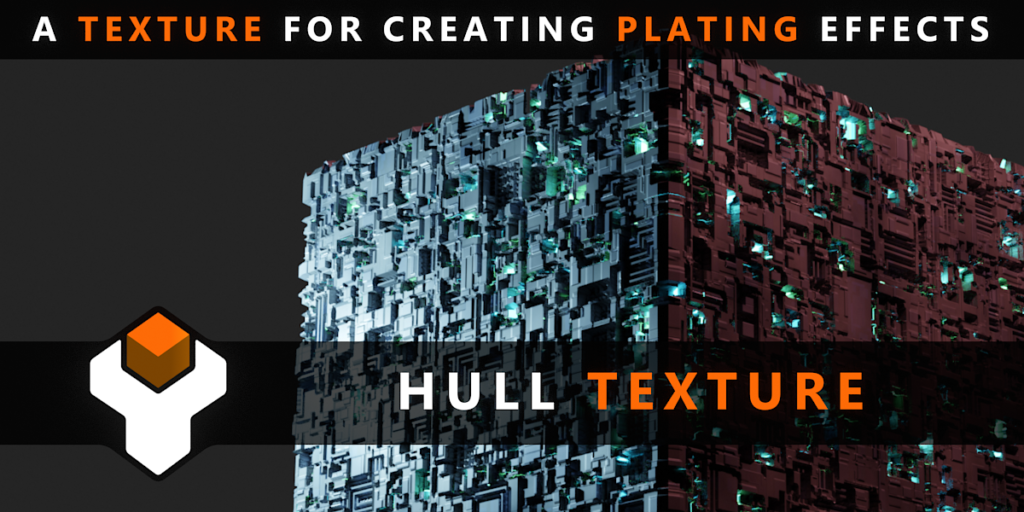
Hull Texture – A versatile, reusable base texture for creating irregular plating effects.
The Shipwright – A bundle of the above add-ons combined with a custom set up for automatic sci fi model generation.
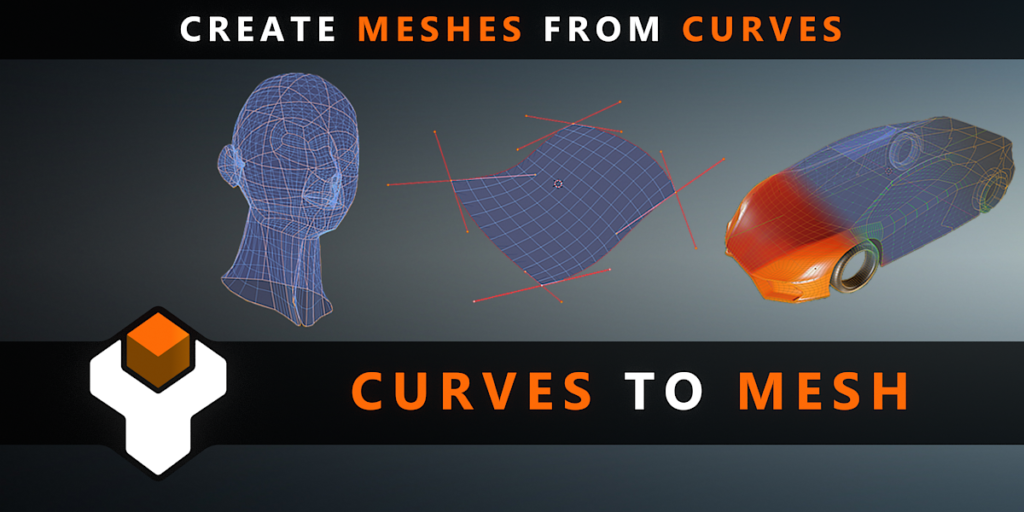
Curves To Mesh – Create and configure mesh surfaces from bezier curves.
Mesh Materializer – Map objects onto another object using its active UV coordinates.
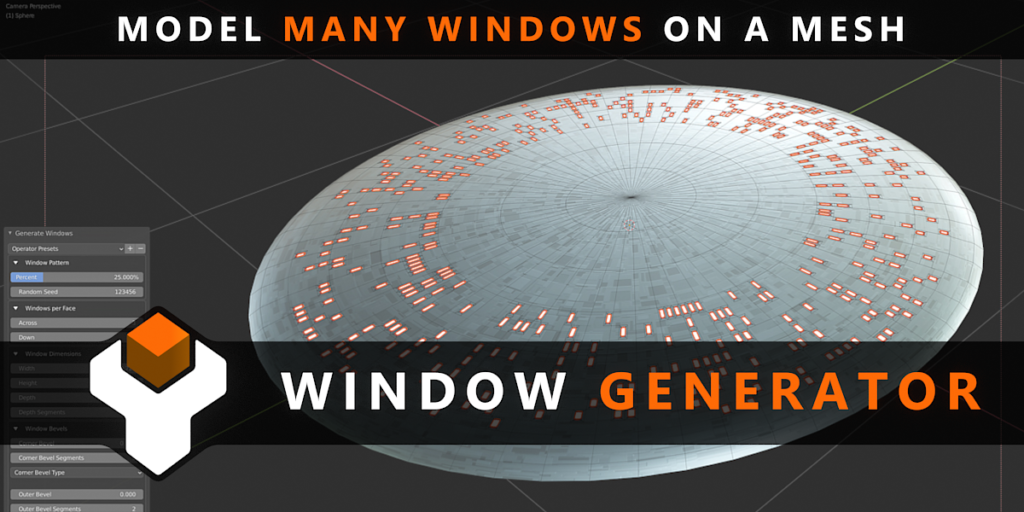
Window Generator – Model many windows at once on the faces of a mesh.
Bevelled Extrude – Create extrusion effects that have configurable bevel effects on the base, corners and tops.
3 years ago I built the 3D Shape Generator to automatically create a variety of unique 3D shapes and objects.
For the latest update I got talking with Marco Iozzi, a professional who has been working in the industry since 1998 as a 3D Artist, Matte Painter and now Concept Artist on productions like Harry Potter, Elysium, Game of Thrones and is currently doing concept art and design on Thor: Love and Thunder.
He downloaded the Shape Generator to help him with his own design work.
He pointed me at Sinix Design, who provides a set of videos on the topic of Design Theory describing the best methods for creating shapes that are appealing and unique.
Sinix spoke about the concept of Big/Medium/Small; the theory that the majority of good designs can be broken down into one large main shape; a medium shape or shapes taking up a smaller amount of the design; and some smaller shapes taking up an even smaller area:
This got me thinking about the Shape Generator; if I can first generate just one large object, automatically scatter medium objects across that, and then scatter smaller random objects across that, I might be onto something.
Once I set this up, it was surprising how many more unique and interesting designs I could quickly generate with the change of a single number.
A sample of the generated shapes using the Shape Generator’s Big/Medium/Small settingsA Screenshot of the Shape Generator’s Big/Medium/Small settings in Blender (Also available in Houdini)
With the help of Marco’s feedback, I’ve also introduced a host of other improvements:
Along with the Big/Medium/Small controls, a new integrated panel allows you to easily revisit and change your settings which now include more material controls, Boolean settings, and easier to install Presets.
A new Iterator function, much like the one I coded with Chipp Walters in KIT OPS SYNTH, allows you to quickly render out countless variations to quickly let you pick a design to take forward.
The new Bake feature allows you to combine all the individual shapes into one so you can continue to model or sculpt your chosen design to the next level of detail. I’ll talk about each of these new features more in the next few videos. I hope you’ll enjoy these updates to the Shape Generator and find it useful in developing your own designs.
Each of these features are covered in the following videos:
I hope you’ll enjoy these updates to the Shape Generator and find it useful in developing your own designs.
It’s often been requested, and here it is – an introductory tutorial on converting a curve network to a mesh in Blender using my Curves to Mesh add-on. Any questions, do let me know….enjoy!
I stumbled across an interesting displacement technique that’s useful for subtle parallax type effects and ripple distortions. Using this technique, you can add movement effects to still images such as clouds to give them the appearance of movement as the camera travels over them.
The above video talks about the technique, and I’ve added a simple Node Group I developed for it up for download at Gumroad and Blender Market.
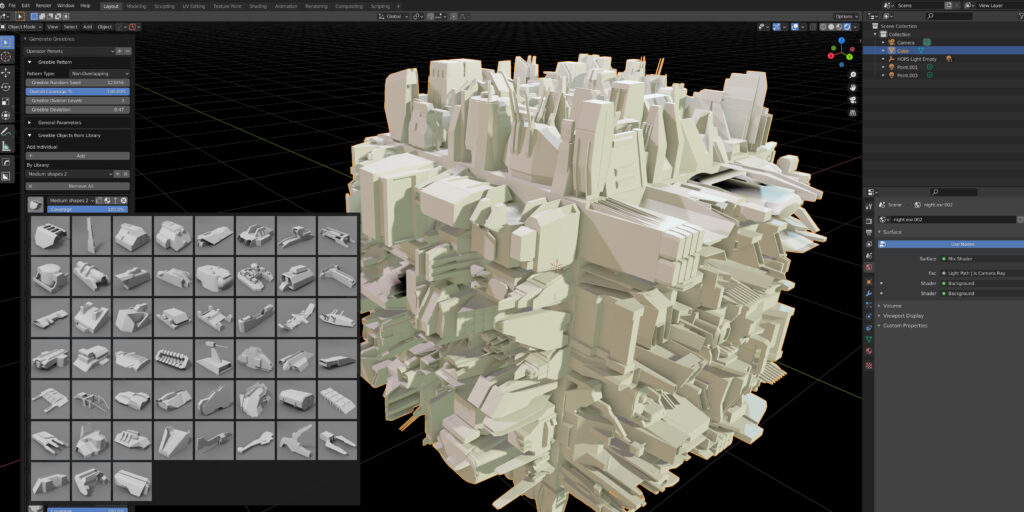
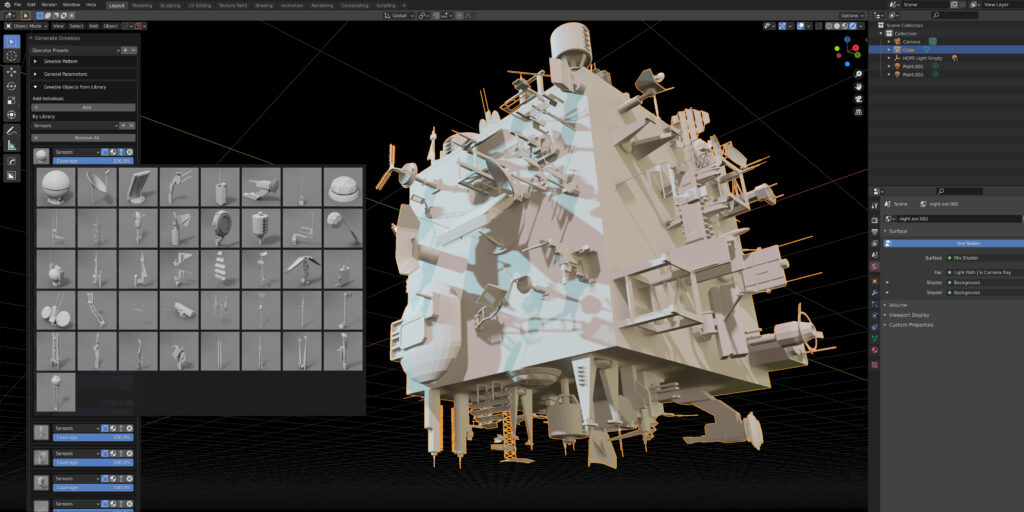
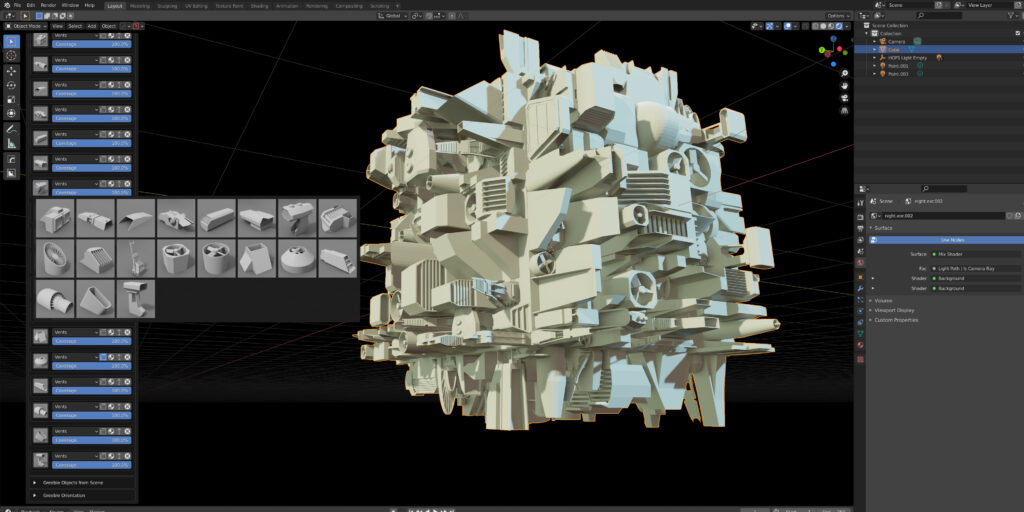
The collection contains 271 3D meshes that you can use to spread across the walls and hulls of your spaceships, stations, futuristic cities and other projects you may have, in order to quickly make them look much more detailed and complicated in your final renders.
The pack contains various objects arranged in folders ranging from sensors, vents, signs, fuel storage, hatches, scaffolding and many more other random objects and shapes.
I’m gradually making my Blender Market add-ons also available on Gumroad, one by one…next one up is the Plating Generator, which adds a range of plating patterns onto an object, as well as the ability to add greeble effects – that is, adding lots of smaller objects onto a larger object’s faces.